Untuk menambah penunjuk dalam MetaTrader 5, buka carta, pergi ke Insert → Indicators, pilih penunjuk, laraskan tetapan jika perlu, dan klik OK. Penunjuk khusus boleh dipasang melalui folder MQL5 → Indicators di dalam direktori data MT5.
Apakah penunjuk dalam MetaTrader 5?
Penunjuk dalam MetaTrader 5 ialah alat analisis yang digunakan untuk mengkaji pergerakan harga, trend, volatiliti, momentum, dan aktiviti dagangan.
MT5 merangkumi puluhan penunjuk terbina dalam yang dibahagikan kepada kategori seperti:
- Penunjuk trend
- Oscillator
- Volume
- Alat Bill Williams
Penunjuk MT5 yang popular termasuk:
- RSI
- MACD
- Bollinger Bands
- Moving Average
- Stochastic Oscillator
Peniaga boleh menggunakan MT5 melalui NordFX MetaTrader 5 untuk menganalisis pelbagai pasaran kewangan.
Bagaimana anda menambah penunjuk terbina dalam dalam MT5?
Penunjuk terbina dalam boleh ditambah terus daripada menu atas MT5.
Arahan langkah demi langkah
- Buka MetaTrader 5.
- Buka carta yang anda ingin analisis.
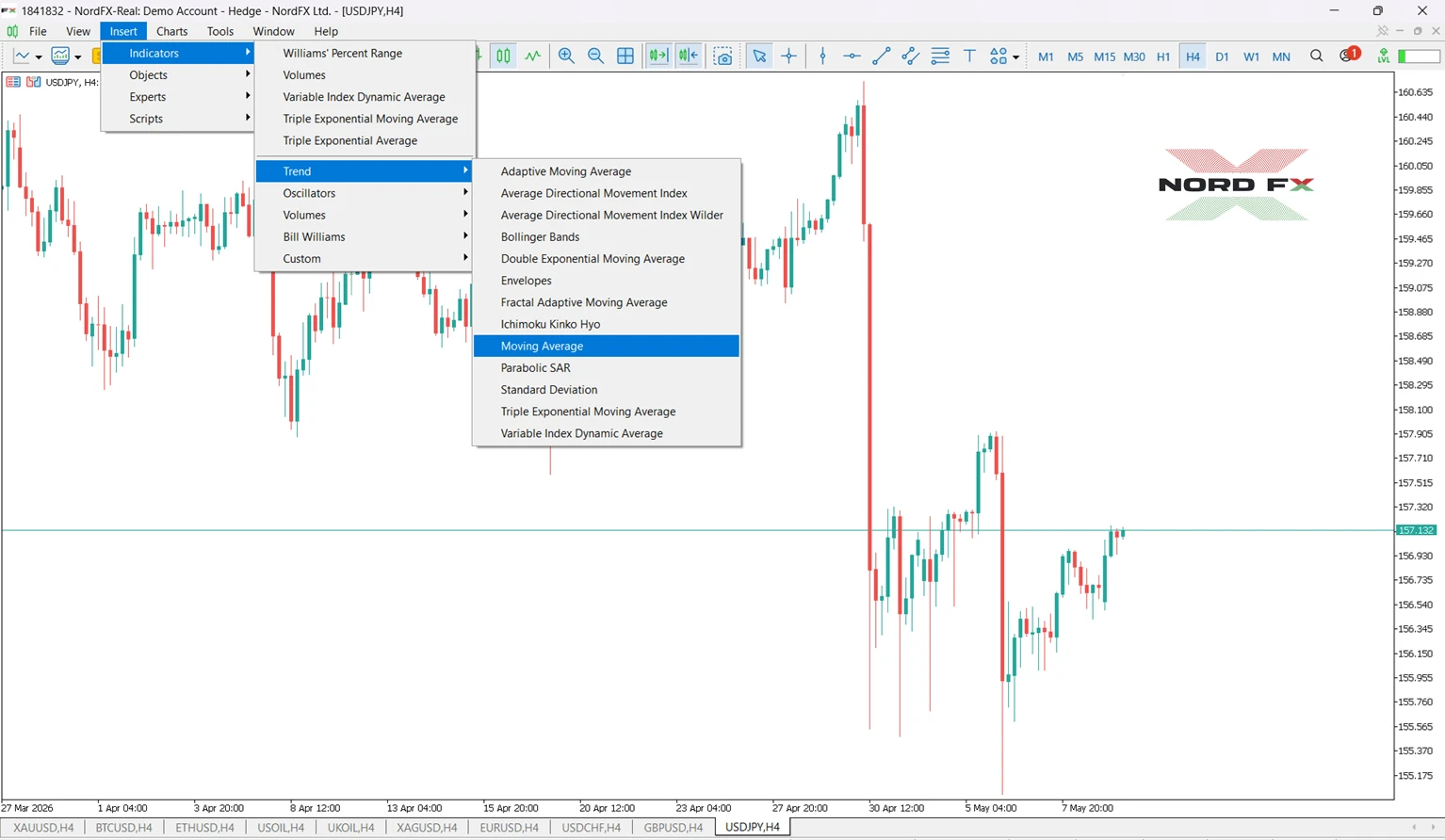
- Klik Insert pada menu atas.
- Pilih Indicators.
- Pilih kategori penunjuk.
- Klik penunjuk yang anda ingin gunakan.
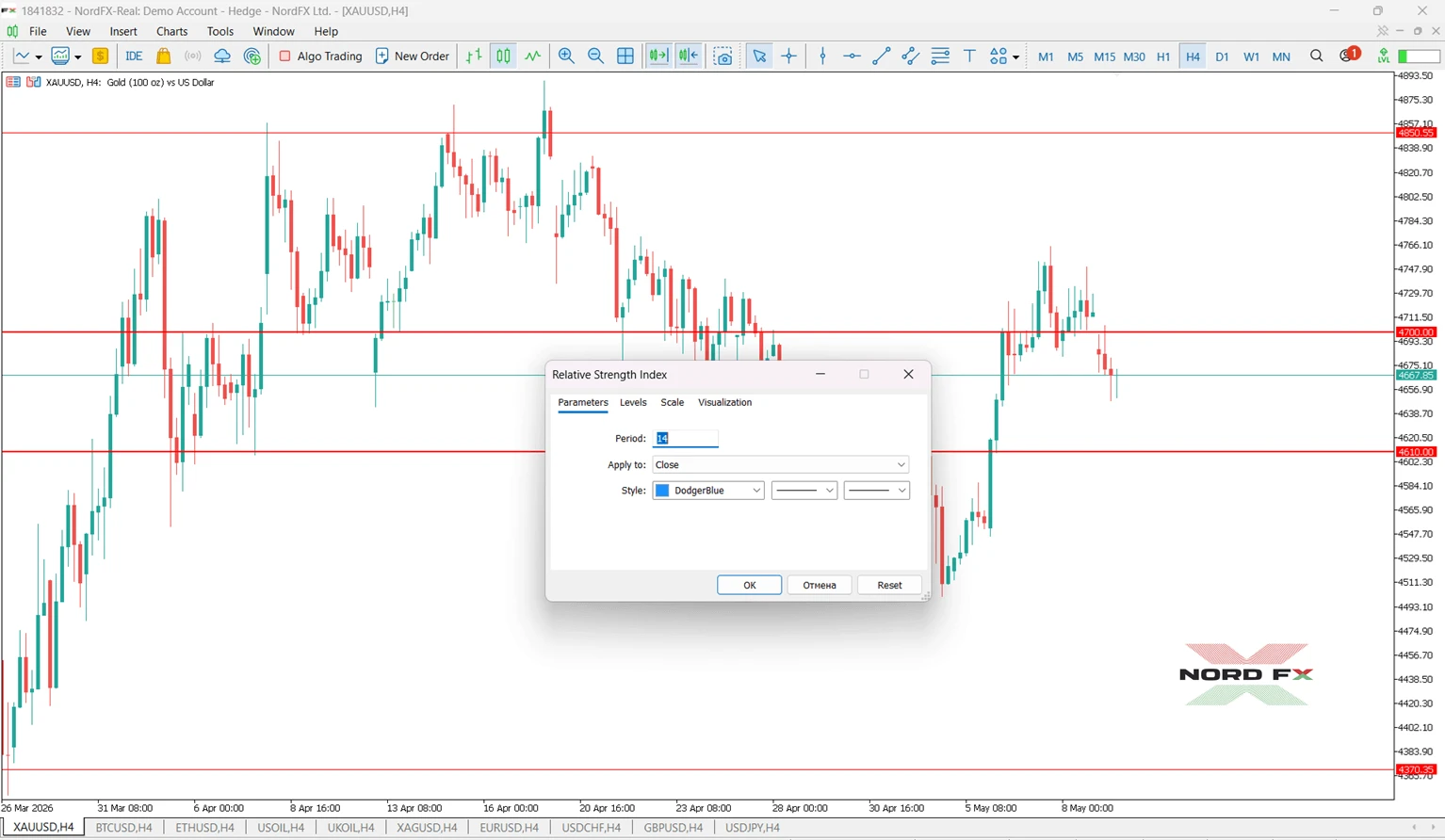
- Laraskan tetapan jika perlu.
- Klik OK.
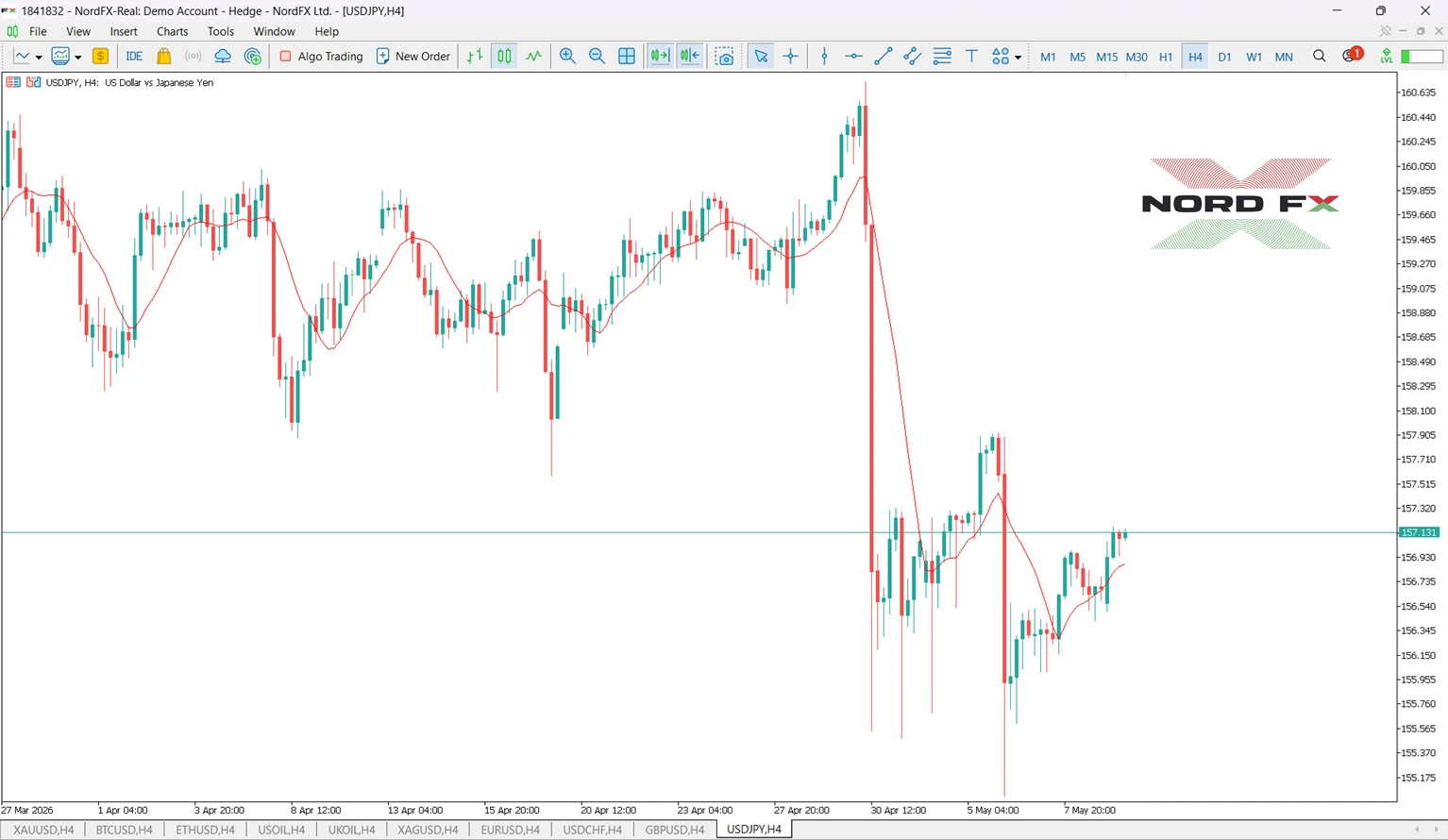
Penunjuk akan muncul serta-merta pada carta.
Contoh: Cara menambah RSI pada carta dalam MT5
Berikut adalah contoh praktikal MT5 menggunakan RSI.
- Buka carta EUR/USD.
- Klik Insert → Indicators → Oscillators → Relative Strength Index.
- Kekalkan tetapan lalai 14 tempoh.
- Klik OK.
Tetingkap RSI akan muncul di bawah carta.
Ramai peniaga menggunakan:
- RSI atas 70 → kemungkinan keadaan terlebih beli (overbought)
- RSI bawah 30 → kemungkinan keadaan terlebih jual (oversold)
Namun, RSI tidak boleh dianggap sebagai isyarat dagangan yang terjamin.
Bagaimana anda menambah penunjuk melalui panel Navigator?
MT5 juga membolehkan peniaga menambah penunjuk menggunakan tetingkap Navigator.
Langkah-langkah:
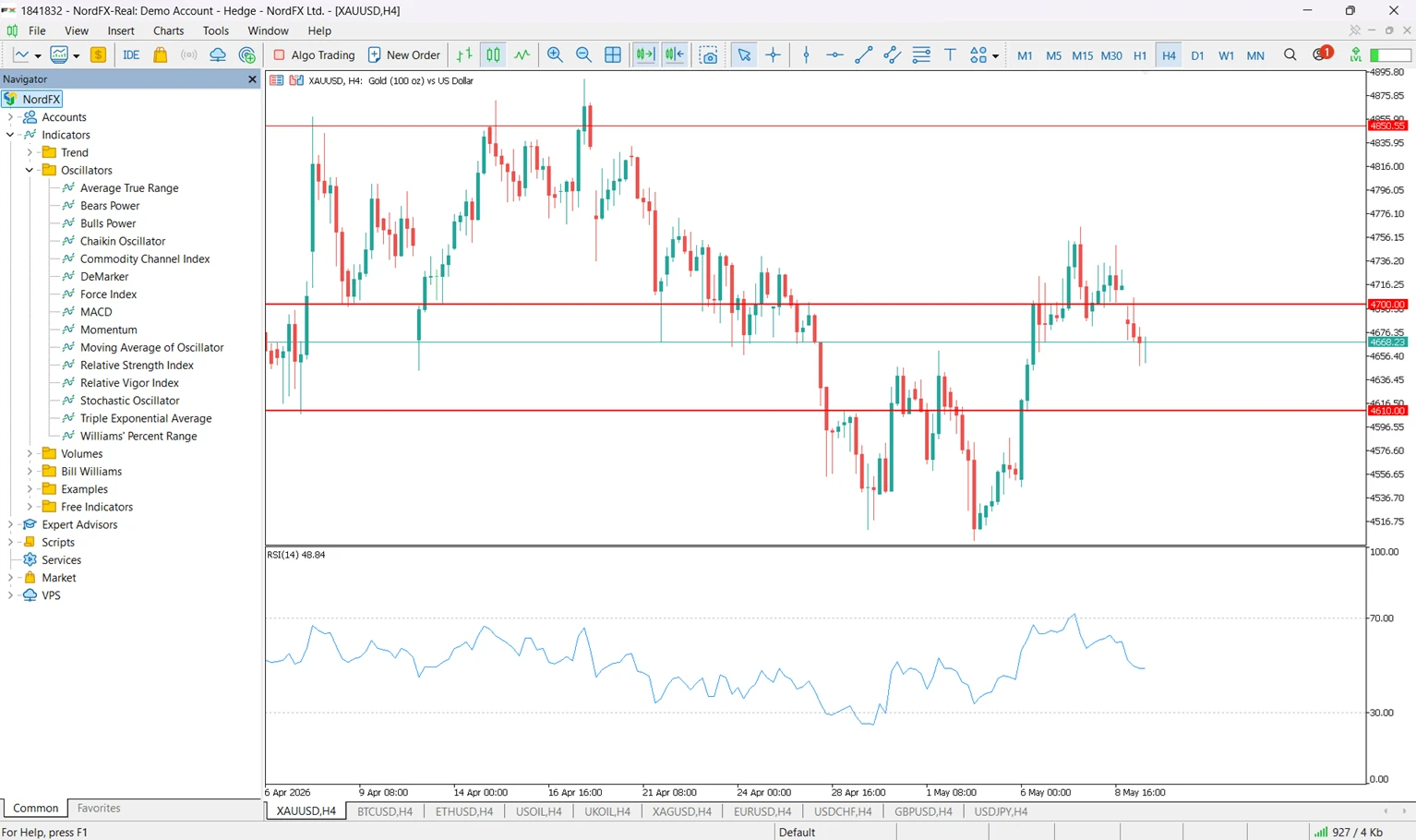
- Buka panel Navigator.
- Kembangkan bahagian Indicators.
- Cari penunjuk tersebut.
- Seret penunjuk ke atas carta.
Kaedah ini sering lebih pantas untuk peniaga yang kerap menggunakan penunjuk.
Bagaimana anda memasang penunjuk khusus dalam MetaTrader 5?
Penunjuk khusus adalah alat pihak ketiga yang tidak disertakan dalam pemasangan standard MT5.
Cara memasang penunjuk khusus MT5
- Muat turun fail penunjuk (.mq5 atau .ex5).
- Dalam MT5, klik File → Open Data Folder.
- Buka:
- MQL5 → Indicators
- Salin fail penunjuk ke dalam folder Indicators.
- Mulakan semula MT5 atau segarkan panel Navigator.
- Buka Navigator → Indicators.
- Seret penunjuk khusus ke atas carta.
Sentiasa gunakan sumber yang dipercayai apabila memuat turun penunjuk khusus.
Penunjuk terbina dalam berbanding penunjuk khusus MT5
Ciri | Penunjuk Terbina Dalam | Penunjuk Khusus |
Pemasangan | Sudah disertakan dalam MT5 | Pemasangan manual diperlukan |
Contoh | RSI, MACD, Bollinger Bands | Alat komuniti atau pihak ketiga |
Kerumitan | Biasanya mesra pemula | Berbeza-beza |
Kemas kini | Dikemas kini dengan kemas kini MT5 | Bergantung kepada pembangun |
Ketersediaan | Standard dalam MT5 | Perlu dimuat turun secara berasingan |
Mengapa penunjuk MT5 saya tidak muncul?
Penunjuk mungkin tidak muncul kerana beberapa sebab.
Masalah | Sebab | Cara membaiki |
Penunjuk hilang daripada Navigator | Fail dipasang dengan tidak betul | Letakkan fail di dalam MQL5 → Indicators |
Penunjuk tidak dimuatkan | Fail tidak disokong atau rosak | Muat turun versi MT5 yang sesuai |
Penunjuk khusus tidak kelihatan | Navigator tidak disegarkan | Mulakan semula MT5 atau segarkan Navigator |
Penunjuk kelihatan tidak betul | Tempoh masa atau tetapan yang salah | Semak tempoh masa carta dan parameter |
Bolehkah anda menggunakan beberapa penunjuk pada masa yang sama?
Boleh. MT5 membolehkan peniaga menggunakan beberapa penunjuk pada carta yang sama secara serentak.
Sebagai contoh:
- Moving Average untuk arah trend
- RSI untuk momentum
- Bollinger Bands untuk volatiliti
Tingkah laku dagangan MT4/MT5 yang diperhatikan menunjukkan bahawa ramai peniaga lebih suka menggabungkan dua atau tiga penunjuk yang saling melengkapi daripada bergantung kepada satu isyarat sahaja.
Kesilapan biasa semasa menambah penunjuk dalam MT5
Masalah | Sebab | Cara mengelak |
Menggunakan terlalu banyak penunjuk | Carta menjadi sukar dibaca | Gunakan hanya beberapa alat yang saling melengkapi |
Mengabaikan perbezaan tempoh masa | Isyarat berbeza mengikut tempoh masa | Padankan tempoh masa dengan strategi dagangan |
Memasang penunjuk MT4 dalam MT5 | MT4 dan MT5 menggunakan seni bina yang berbeza | Gunakan fail yang serasi dengan MT5 |
Menggunakan penunjuk tanpa konteks | Penunjuk tertinggal daripada tindakan harga | Gabungkan penunjuk dengan analisis carta |
Terlupa menyimpan tetapan | Tetapan penunjuk hilang kemudian | Simpan templat carta selepas persediaan |
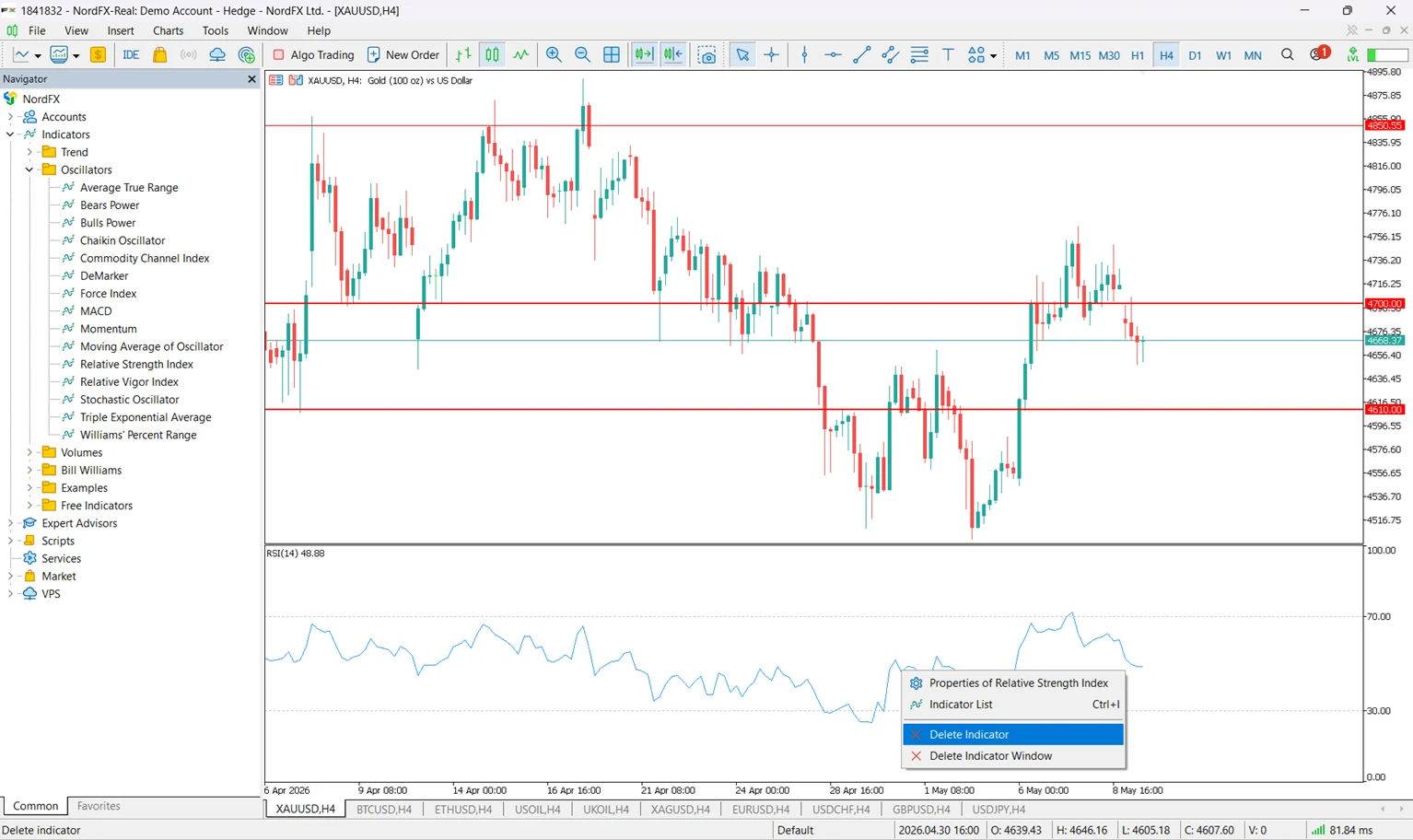
Bagaimana anda mengalih keluar penunjuk daripada carta dalam MT5?
Untuk mengalih keluar penunjuk:
- Klik kanan pada carta.
- Pilih Indicators List.
- Pilih penunjuk tersebut.
- Klik Delete.
Anda juga boleh mengalih keluar semua penunjuk daripada menu yang sama.
Soalan Lazim
Di mana penunjuk terletak dalam MT5?
Penunjuk boleh diakses melalui Insert → Indicators atau panel Navigator.
Bolehkah anda memasang penunjuk khusus dalam MT5?
Boleh. Penunjuk khusus boleh dipasang melalui folder MQL5 → Indicators.
Adakah penunjuk MT4 serasi dengan MT5?
Tidak selalu. MT4 dan MT5 menggunakan bahasa pengaturcaraan dan seni bina platform yang berbeza.
Bolehkah anda menggunakan beberapa penunjuk pada satu carta?
Boleh. MT5 menyokong beberapa penunjuk secara serentak.
Mengapa penunjuk khusus saya tidak muncul dalam MT5?
Sebab yang paling biasa adalah laluan pemasangan yang salah, fail tidak serasi, atau isu penyegaran Navigator.
Adakah penunjuk menjamin hasil yang menguntungkan?
Tidak. Penunjuk adalah alat analisis dan tidak menjamin prestasi pasaran pada masa hadapan.
Ringkasan utama
- MT5 merangkumi banyak penunjuk teknikal terbina dalam.
- Penunjuk boleh ditambah melalui Insert → Indicators atau panel Navigator.
- Penunjuk khusus perlu dipasang di dalam folder MQL5 → Indicators.
- Penunjuk MT4 tidak selalu serasi dengan MT5.
- Penunjuk berfungsi paling baik apabila digabungkan dengan analisis carta yang lebih luas.
Bacaan berkaitan:
- MetaTrader 5 di NordFX
- Platform NordFX
- Penunjuk MT5
- Halaman pendidikan RSI, MACD, Bollinger Bands, dan Stochastic Oscillator di NordFX
Rujukan teknikal:
Kenali Penulis
Vanessa Polson ialah pengurus pemasaran di NordFX dengan lebih dua belas tahun pengalaman dalam pemasaran dalam talian dalam industri perkhidmatan kewangan. Beliau telah membangunkan dan melaksanakan kempen berasaskan data merentasi kanal carian, sosial, dan paparan dalam persekitaran dalaman syarikat. Kerjanya memberi tumpuan kepada menterjemahkan produk kewangan yang kompleks dan alat dagangan kepada kandungan pendidikan yang jelas dan praktikal, memberikannya pandangan yang luas dan menyeluruh tentang landskap dagangan global.
Berhubung dengan Vanessa di LinkedIn.
Kembali Kembali